
Turbo Soccer How to Redeem Codes
Settings → Codes lobby steps so free packs land on the first try.
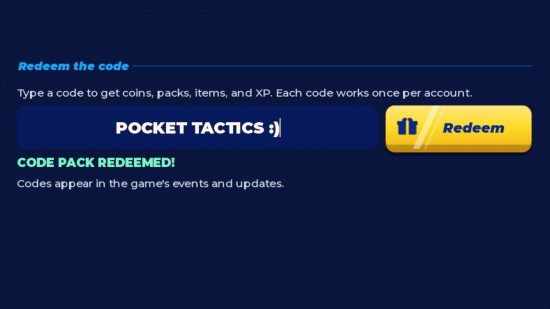
Redeeming codes in Turbo Soccer takes under a minute once you know the current lobby path. As of October 2026, the reliable flow is: leave the match, open Settings, choose Codes, paste carefully, and verify the reward before you queue again.
Start from the live list on the codes hub. The primary active code is PACK. Expired strings such as Discord belong in the retired table only.
Before you redeem
- Update Roblox so the Turbo Soccer client matches the latest beta build.
- Join the experience and wait until the lobby finishes loading — do not open menus during the initial spawn fade.
- Finish or leave any active match. Promo panels often hide mid-game.
- Keep the code copied with no trailing spaces.
If you are brand new, skim Getting Started so you know where Credits and packs appear after a successful redeem.
Universal Settings → Codes path
- From the Turbo Soccer lobby, open Settings (commonly on the right side or toward the bottom of the HUD).
- Select Codes.
- Paste PACK (or the newest active code from the codes hub).
- Press Redeem / Submit and wait for the success toast.
- Open packs, inventory, or the garage to confirm the reward.
Keyboard tip: after pasting, tap the field once more and arrow to the end to ensure no hidden character remains. If the button stays grey, close Settings and reopen Codes.
Mobile extras
- Rotate to landscape before opening Settings.
- Long-press the Codes field and paste from Notes — autocorrect ruins case-sensitive strings.
- Dismiss the keyboard so you can see the confirmation toast.
- If the reward UI is clipped, reopen inventory from the main lobby buttons.
Touch driving tips after rewards land: mobile tips and controls.
Console extras
- Connect a compatible controller and reach the lobby.
- Open Settings → Codes with the d-pad or stick.
- Use the system keyboard overlay; delete trailing spaces before submit.
- Check packs or Credits widgets after the toast.
Verifying rewards
A successful redeem usually shows a toast, popup, or pack animation. Still verify:
- Pack count increased, or a new pack appears ready to open.
- Credits balance moved if the reward included currency.
- Cosmetics show in the garage or cosmetics menus.
If nothing changed, leave the experience fully, rejoin, and check again. Beta inventories occasionally need a fresh session to sync.
What to do after redeeming PACK
- Open the pack immediately so you know which car or cosmetic you received.
- Equip the new car only if it matches your comfort — compare with the car tier list and cars ranking.
- Run a short free-play or casual match using the practice checklist.
- Practise a few kickoffs before ranked.
Codes feed progression; mechanics win matches. Continue with how to score and aerials and boost.
Common errors and fixes
| Symptom | Likely cause | Fix |
|---|---|---|
| Invalid code | Typo, wrong case, or expired | Recopy from codes hub |
| Already redeemed | One-time per account | Wait for a newer code |
| Codes missing | Still in a match or UI bug | Return to lobby → Settings → Codes |
| No reward visible | Sync delay | Relog into Turbo Soccer |
| Keyboard covers field | Mobile portrait mode | Switch to landscape |
Never buy codes from strangers. Official promos are free. Account trading or paid code scams violate Roblox rules.
Keeping your list fresh
Recheck the codes hub after reading updates, watching creator streams, or checking Discord announcements linked from the wiki overview. When a code expires, we move it to the retired table so the active list stays short.
Manual redeeming from this guide remains safer than third-party “auto redeem” tools — read scripts risk notes before experimenting.
Related reading
- Live list: Turbo Soccer codes
- Day-one path: Getting Started
- Spend rewards wisely: garage and tier list
- Climb after unlocking gear: ranked guide
Frequently Asked Questions
Quick answers for Turbo Soccer players.
Where is the code button in Turbo Soccer?
Open lobby **Settings**, then **Codes**. Leave active matches if the option is hidden.
Can I redeem codes during a match?
Usually no. Return to the lobby first so Settings → Codes can appear and sync rewards correctly.
What if PACK says invalid?
Confirm you copied it with no spaces, try once more after rejoining, then check the codes hub in case it expired.
Do I need Roblox Premium to redeem?
No. Codes work on standard accounts. Premium may offer other perks, but redemption itself does not require it.
Is the redeem path the same on mobile?
Yes — Settings → Codes — but use landscape and paste from Notes. See mobile tips.